
Two-Factor Authentication (2FA) adds an extra layer of security to your Emerge billing account. You can enable 2FA using:
Option 1: Authentication App
Option 2: Email Verification
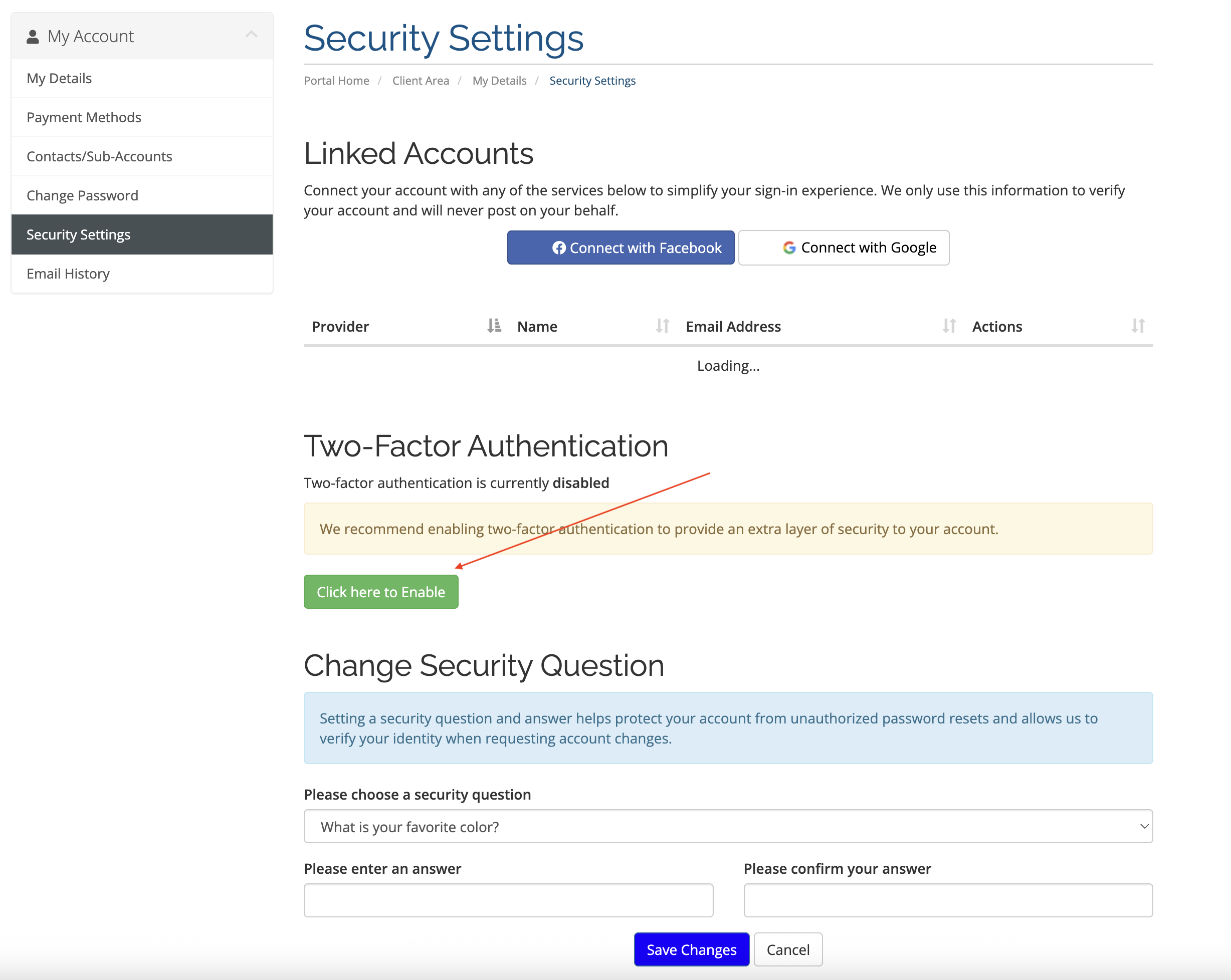
1. Log into your Emerge billing account, you will see the Two-Factor Authentication setup page. Click "Click here to Enable" to proceed.
2. May choose your desired Two-Factor Authentication method and click "Get Started" to proceed.
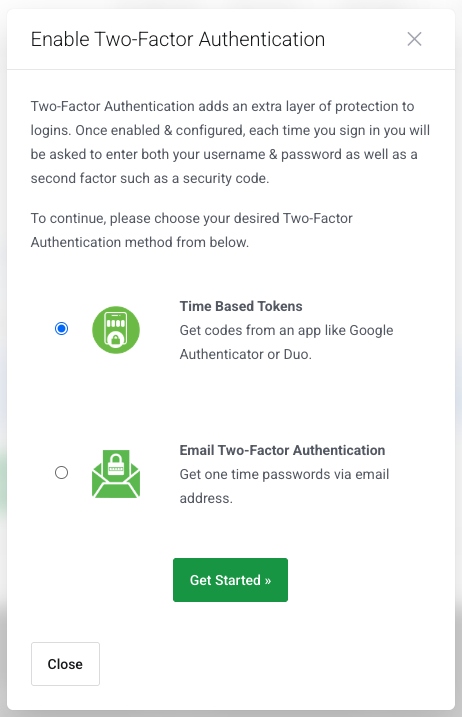
Option 1: Time Based Tokens Using an Authentication App
1. Download a 2FA app on your Android or iOS device. (keep this app for future logins)
For Android users: Google Authenticator
For iOS users: Google Authenticator
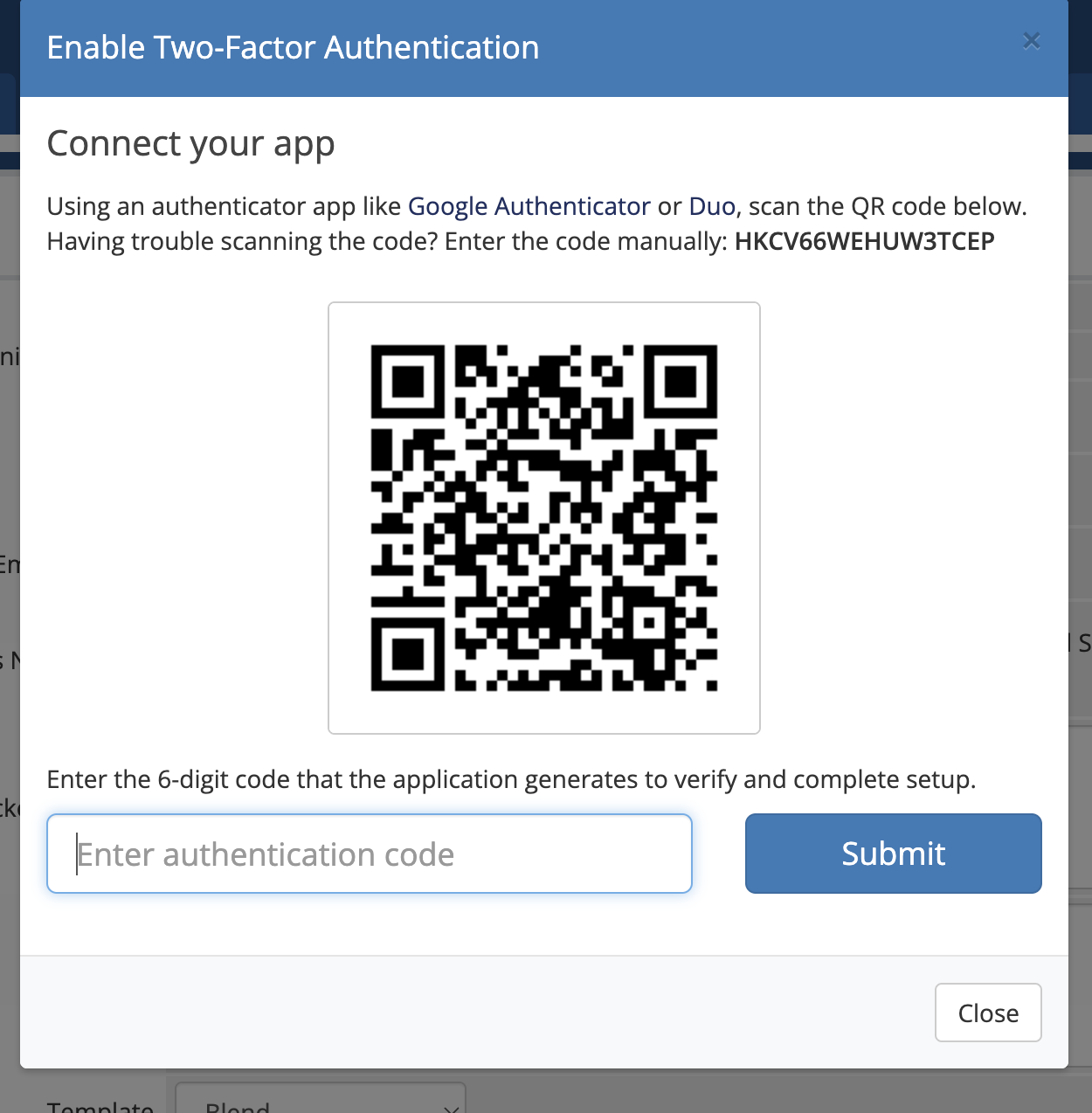
2. Use your downloaded authentication app to scan the QR code displayed.
3. Enter the 6-digit code generated by the authenticator app and click "Submit" to proceed.
4. Safeguard the Backup Code by storing it in a secure location on your device.
5. Click "Close".
6. Two-Factor Authentication is now successfully configured and this 2FA app will be required for future logins.
Option 2: Email Two-Authentication
1. Select Email Two-Authentication as your preferred 2FA method.
2. Click "Get Started" to proceed.
3. A 6-digit verification code will be sent to your Emerge billing account registered email address.
(Notes: Your OTP will expire in 10 minutes)
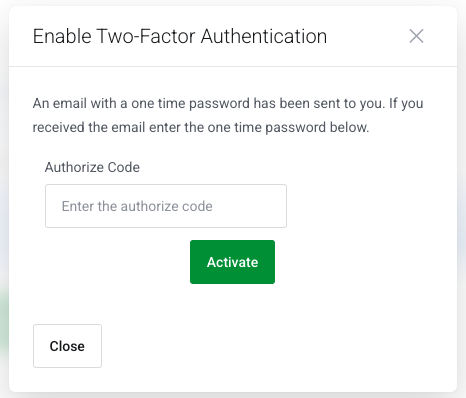
4. Enter the code in the field provided and click "Activate".
5. Safeguard the Backup Code by storing it in a secure location on your device.
6. Click "Close".